Speed up your XP and Vista by hack its system registry
Do you know that your computer is like your car: it needs periodic maintenance to keep it running at optimum performance. Installing and un-installing programs, surfing the Internet, emailing, and other everyday activities create a sort of “sludge” that builds up in your computer over time, much like an automobile engine. After a while, it doesn't startup like when it was new, it stalls unexpectedly, and performance is sluggish on the (information) highway.

Of course, the fastest and easiest way to speed-up your computer is to allow a software program to do it for you! Although you will find that all of the adjustments in this book will speed up your system, the most effective and easiest way to give your computer blazing speed is to clean up your system’s Registry.
We strongly recommend running a free Registry scan to find out how many errors you computer is hiding from you. Your computer will likely have hundreds of Registry errors that are dramatically slowing down the potential speed and performance.
Or you can try the shareware of these registry cleaner programs, such as System Cleaner, Registry First Aid, RegSeeker or TuneUp Utilities 2009 for tune up your Windows XP and/or Vista.

Of course, the fastest and easiest way to speed-up your computer is to allow a software program to do it for you! Although you will find that all of the adjustments in this book will speed up your system, the most effective and easiest way to give your computer blazing speed is to clean up your system’s Registry.
We strongly recommend running a free Registry scan to find out how many errors you computer is hiding from you. Your computer will likely have hundreds of Registry errors that are dramatically slowing down the potential speed and performance.
Or you can try the shareware of these registry cleaner programs, such as System Cleaner, Registry First Aid, RegSeeker or TuneUp Utilities 2009 for tune up your Windows XP and/or Vista.
How to Hack Into a Windows XP Computer Without Changing Password
Another method to login to a password protected Windows even if you do not have the password is by making Windows accepting any passwords.

There is a far better way to get into Windows XP. It is easy and it does not reset the password. Hack into a computer running Windows XP without changing the password and find out all and any passwords on the machine (including admin accounts). You do not need access to any accounts to do this. Of course, do not do this on anyone elses computer without proper authorization.
Steps to Hack into a Windows XP Computer without changing password:
1. Get physical access to the machine. Remember that it must have a CD or DVD drive.
2.Download this archive file (Size: 4.5 Mb).
3. Unzip the downloaded PCHaCKs-DreamPack.zip and you’ll get dpl.ISO.
4. Use any burning program that can burn ISO images like UltraISO, PowerISO or Nero.
5. After you have the disk, boot from the CD or DVD drive. You will see Windows 2000 Setup and it will load some files.
6. Press “R” to install DreamPackPL.
7. Press “C” to install DreamPackPL by using the recovery console.
8. Select the Windows installation that is currently on the computer (Normally is “1″ if you only have one Windows installed)
9. Backup your original sfcfiles.dll by typing:
“ren C:\Windows\System32\sfcfiles.dll sfcfiles.lld” (without quotes)
10. Copy the hacked file from CD to system32 folder. Type:
“copy D:\i386\pinball.ex_ C:\Windows\System32\sfcfiles.dll” (without quotes and assuming your CD drive is D:)
11. Type “exit”, take out disk and reboot.
12. In the password field, type “dreamon” (without quotes) and DreamPack menu will appear.
13. Click the top graphic on the DreamPack menu and you will get a menu popup.

14. Go to commands and enable the options and enable the god command.

15. Type “god” in the password field to get in Windows.
You can also go to Passwords and select “Logon with wrong password and hash”. This option allows you to login with ANY password.
Note: I was unable to bring up the DreamPackPL for the first time because I have Kaspersky Anti-Virus already running in background. I believe most antivirus already labeled this tool as a Hack-Tool. A Hack-Tool is NOT a virus. DreamPackPL helps you bypass the Windows Login screen and it is not destructive.
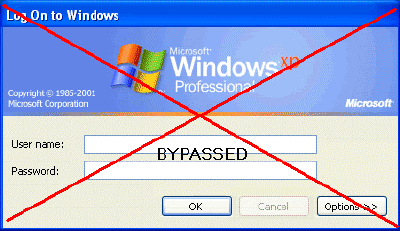
There is a far better way to get into Windows XP. It is easy and it does not reset the password. Hack into a computer running Windows XP
without changing the password and find out all and any passwords on the machine (including admin accounts). You do not need access to any accounts to do this. Of course, do not do this on anyone elses computer without proper authorization.Steps to Hack into a Windows XP Computer without changing password:
1. Get physical access to the machine. Remember that it must have a CD or DVD drive.
2.Download this archive file (Size: 4.5 Mb).
3. Unzip the downloaded PCHaCKs-DreamPack.zip and you’ll get dpl.ISO.
4. Use any burning program that can burn ISO images like UltraISO, PowerISO or Nero.
5. After you have the disk, boot from the CD or DVD drive. You will see Windows 2000 Setup and it will load some files.
6. Press “R” to install DreamPackPL.
7. Press “C” to install DreamPackPL by using the recovery console.
8. Select the Windows installation that is currently on the computer (Normally is “1″ if you only have one Windows installed)
9. Backup your original sfcfiles.dll by typing:
“ren C:\Windows\System32\sfcfiles.dll sfcfiles.lld” (without quotes)
10. Copy the hacked file from CD to system32 folder. Type:
“copy D:\i386\pinball.ex_ C:\Windows\System32\sfcfiles.dll” (without quotes and assuming your CD drive is D:)
11. Type “exit”, take out disk and reboot.
12. In the password field, type “dreamon” (without quotes) and DreamPack menu will appear.
13. Click the top graphic on the DreamPack menu and you will get a menu popup.
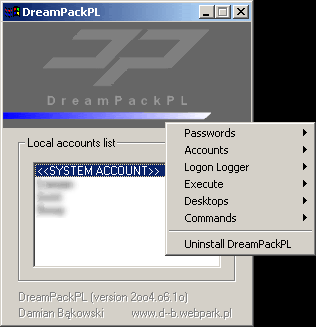
14. Go to commands and enable the options and enable the god command.
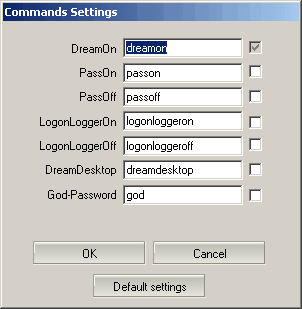
15. Type “god” in the password field to get in Windows.
You can also go to Passwords and select “Logon with wrong password and hash”. This option allows you to login with ANY password.
Note: I was unable to bring up the DreamPackPL for the first time because I have Kaspersky Anti-Virus already running in background. I believe most antivirus already labeled this tool as a Hack-Tool. A Hack-Tool is NOT a virus. DreamPackPL helps you bypass the Windows Login screen and it is not destructive.
How To Make A Bootable Windows USB Flash Disk
1. Does your computer support booting from USB ?
?
Usually, if its an option in your BIOS boot sequence menu, the answer to this is yes. If its not there, look for BIOS updates. If you are not sure, proceed and see what happens
2. Sorting out the "Bootability" of your USB-Drive
Connect your USB drive to your computer, directly, without a Hub. Then, shut down your computer, disconnect any other hard disk drives from it, and insert your original Windows XP CD into the drive. Start the installation, and proceed to the section where you are allowed to pick a hard drive. If it goes beyond the partition selection, your drive is already fine for booting Windows XP. If not (seems to be the cases with many of the Freecom USB HDDs for example), you will get an error like "Windows is unable to find your drive, partition, data etc bla". This is usually not a big problem.

All you need to do is "properly" format the drive. Reboot into your normal Windows, and get this HP tool , and use it to format your HDD completely. I chose NTFS format, worked fine everytime i tried. After this, my drives are recognized as valid installation devices by the Windows XP installer.
(In fact, i did not manage to create a USB primary partition with FAT32 that was recognized as being installable)
3. Dumping the original Windows CD into an ISO File
Pretty easy one. Simply open WinISO, and select Actions -> Make ISO from CDROM, and save your CD image.
4. Extracting the files we need to work on
After the CD dump is done, close and reopen WinISO. Then, open the ISO file you just created using File -> Open.
Now, click the I386 folder, and select the following files (Ctrl key to multi-select)
TXTSETUP.SIF
DOSNET.INF
USB.IN_
USBPORT.IN_
USBSTOR.IN_
Select Actions -> Extract and put the resulting files into some folder to work on them.
5. Unpacking IN_ files
Use the Cab SDK (from the command line) for extracting the contents of the .IN_ files. Each of them contains exactly one .inf file. If you are unsure how to use the Cab SDK, here is an example command line:
cabarc x USBSTOR.IN_
You should end up with three new files in the folder, called:
usb.inf
usbport.inf
usbstor.inf
You can now delete the .IN_ files.
6. Editing the files
This is the main job. i ll also try to explain a bit whats happening. Use a simple Texteditor like Notepad.
TXTSETUP.SIF
This file is loaded on the initial install step by the Windows XP CD installer. In this file, we will change the way Windows treats USB devices during system setup -- the default is to only treat them as input devices during installation -- we will change this to include mass storage driver support (which needs to be loaded into the installer much earlier in order to work).
First, move the following entries from [InputDevicesSupport.Load] to the [BootBusExtenders.Load] section , as shown here
... now the same for [BootBusExtenders] and [InputDevicesSupport]
and also in [SourceDisksFiles]
Finally, save and close TXTSETUP.SIF. We are done with it.
DOSNET.INF
Now, open DOSNET.INF , and change the second [Files] section to look like this:
usb.inf
Change the bolded lines in the [StandardHub.AddService] and [CommonClassParent.AddService] sections:
usbport.inf
Change the bolded lines in the [EHCI.AddService], [OHCI.AddService] , [UHCI.AddService] and [ROOTHUB.AddService] sections:
usbstor.inf
Change / Add [USBSTOR.AddService] section to this:
new file: USBBOOT.INF
Create a new file called USBBOOT.INF in the same directory as your other changed files, and put the following content into it:
7. Repack the inf files into their original IN_ format
If you have not already deleted your extracted .IN_ files, do so now. They need to be replaced. Open a DOS shell again, and navigate to the folder with your changed files. Then exceute the following commands:
The three IN_ files should now exist again.
Congratulations. All out modifications are done.
8. Inject the changed files into the ISO
Open your Windows CD image again with WinISO. Navigate to the I386 folder, and delete the following files from the ISO, saving the changes to the ISO afterwards:
DOSNET.INF
TXTSETUP.SIF
USB.IN_
USBPORT.IN_
USBSTOR.IN_
Just to be sure all is updated in the ISO, cloase and repoen the ISO in WinISO. Now, again go to the I386 folder and select "Add Files". Now add your changed files, in detail:
USBBOOT.INF
DOSNET.INF
TXTSETUP.SIF
USB.IN_
USBPORT.IN_
USBSTOR.IN_
Save the ISO. You are done.
9. Burn the ISO back to CD
Feel free to use any burning package you want. I used the free and simple Burnatonce
10. Install Windows XP from the CD
Shut down your computer. Disconnect ANY internal and external hard drives (so Windows cannot find them during installation and mess up their Master Boot Records hehe). Some computers will have trouble to boot without an internal HDD attached, check in your BIOS and, if possible, remove the HDD from the boot sequence and set the USB Harddisk as the first boot device, and the CDROM as second.
Also, now connect your USB Harddrive directly to the computer, without any Hubs in between.
Windows should install just fine, with the exceptions noted below.
Issues you will encounter during installation:
During driver installation, the USB drivers will prompt you, as they are "not certified" - This is normal. Our changes invalidated the checksum, and therefore the driver is no longer signed. Just press "yes" a couple of times.
Upon completion of the install, the system will complain once on the first bootup that the pagefile does not exist. You can ignore this for now, as Windows will work fine without it. People are looking at fixing this issue, but its not critical for now.
Once everything is up and running , shut down and reconnect all your drives.
?Usually, if its an option in your BIOS boot sequence menu, the answer to this is yes. If its not there, look for BIOS updates. If you are not sure, proceed and see what happens
2. Sorting out the "Bootability" of your USB-Drive
Connect your USB drive to your computer, directly, without a Hub. Then, shut down your computer, disconnect any other hard disk drives from it, and insert your original Windows XP CD into the drive. Start the installation, and proceed to the section where you are allowed to pick a hard drive. If it goes beyond the partition selection, your drive is already fine for booting Windows XP. If not (seems to be the cases with many of the Freecom USB HDDs for example), you will get an error like "Windows is unable to find your drive, partition, data etc bla". This is usually not a big problem.

All you need to do is "properly" format the drive. Reboot into your normal Windows, and get this HP tool
, and use it to format your HDD completely. I chose NTFS format, worked fine everytime i tried. After this, my drives are recognized as valid installation devices by the Windows XP installer.(In fact, i did not manage to create a USB primary partition with FAT32 that was recognized as being installable)
3. Dumping the original Windows CD into an ISO File
Pretty easy one. Simply open WinISO, and select Actions -> Make ISO from CDROM, and save your CD image.
4. Extracting the files we need to work on
After the CD dump is done, close and reopen WinISO. Then, open the ISO file you just created using File -> Open.
Now, click the I386 folder, and select the following files (Ctrl key to multi-select)
TXTSETUP.SIF
DOSNET.INF
USB.IN_
USBPORT.IN_
USBSTOR.IN_
Select Actions -> Extract and put the resulting files into some folder to work on them.
5. Unpacking IN_ files
Use the Cab SDK (from the command line) for extracting the contents of the .IN_ files. Each of them contains exactly one .inf file. If you are unsure how to use the Cab SDK, here is an example command line:
cabarc x USBSTOR.IN_
You should end up with three new files in the folder, called:
usb.inf
usbport.inf
usbstor.inf
You can now delete the .IN_ files.
6. Editing the files
This is the main job. i ll also try to explain a bit whats happening. Use a simple Texteditor like Notepad.
TXTSETUP.SIF
This file is loaded on the initial install step by the Windows XP CD installer. In this file, we will change the way Windows treats USB devices during system setup -- the default is to only treat them as input devices during installation -- we will change this to include mass storage driver support (which needs to be loaded into the installer much earlier in order to work).
First, move the following entries from [InputDevicesSupport.Load] to the [BootBusExtenders.Load] section , as shown here
[BootBusExtenders.Load]
pci = pci.sys
acpi = acpi.sys
isapnp = isapnp.sys
acpiec = acpiec.sys
ohci1394 = ohci1394.sys
usbehci = usbehci.sys
usbohci = usbohci.sys
usbuhci = usbuhci.sys
usbhub = usbhub.sys
usbstor = usbstor.sys
[InputDevicesSupport.Load]
usbehci = usbehci.sys
usbohci = usbohci.sys
usbuhci = usbuhci.sys
usbhub = usbhub.sys
usbccgp = usbccgp.sys
hidusb = hidusb.sys
serial = serial.sys
serenum = serenum.sys
usbstor = usbstor.sys
... now the same for [BootBusExtenders] and [InputDevicesSupport]
[BootBusExtenders]
pci = "PCI-Bustreiber",files.pci,pci
acpi = "ACPI Plug & Play-Bustreiber",files.acpi,acpi
isapnp = "ISA Plug & Play-Bustreiber",files.isapnp,isapnp
acpiec = "Integrierter ACPI-Controllertreiber",files.none,acpiec
ohci1394 = "IEEE-1394-Bus-OHCI-konformer Anschlusstreiber",files.ohci1394,ohci1394
usbehci = "Erweiterter Hostcontroller",files.usbehci,usbehci
usbohci = "Open Hostcontroller",files.usbohci,usbohci
usbuhci = "Universeller Hostcontroller",files.usbuhci,usbuhci
usbhub = "Standard-USB-Hubtreiber",files.usbhub,usbhub
usbstor = "USB-Speicherklassentreiber",files.usbstor,usbstor
[InputDevicesSupport]
usbehci = "Erweiterter Hostcontroller",files.usbehci,usbehci
usbohci = "Open Hostcontroller",files.usbohci,usbohci
usbuhci = "Universeller Hostcontroller",files.usbuhci,usbuhci
usbhub = "Standard-USB-Hubtreiber",files.usbhub,usbhub
hidusb = "HID-Parser",files.hidusb,hidusb
serial = "Treiber fur seriellen Anschluss",files.none,serial
serenum = "Enumerator fur seriellen Anschluss",files.none,serenum
usbstor = "USB-Speicherklassentreiber",files.usbstor,usbstor
usbccgp = "USB Generic Parent Driver",files.usbccgp,usbccgp
Next, we also have to write several keys into the registry. Convieniently, the txtsetup.sif allows you to specify files that are parsed and instered into the registry at install time. Insert the following in the [HiveInfs.Fresh] section:
[HiveInfs.Fresh]
AddReg = hivedef.inf,AddReg
AddReg = hivesys.inf,AddReg
AddReg = hivesft.inf,AddReg
AddReg = hivecls.inf,AddReg
AddReg = hiveusd.inf,AddReg
AddReg = dmreg.inf,DM.AddReg
AddReg = usbboot.inf,usbservices
and also in [SourceDisksFiles]
[SourceDisksFiles]
usbboot.inf = 1,,,,,,_x,3,,3
bootvid.dll = 1,,,,,,3_,2,0,0,,1,2
kdcom.dll = 1,,,,,,3_,2,0,0,,1,2
Finally, save and close TXTSETUP.SIF. We are done with it.
DOSNET.INF
Now, open DOSNET.INF , and change the second [Files] section to look like this:
[Files]
d1,usbboot.inf
d1,_default.pif
d1,12520437.cpx
d1,12520850.cpx
usb.inf
Change the bolded lines in the [StandardHub.AddService] and [CommonClassParent.AddService] sections:
[StandardHub.AddService]
DisplayName = %StandardHub.SvcDesc%
ServiceType = 1 ; SERVICE_KERNEL_DRIVER
StartType = 0 ; SERVICE_DEMAND_START
ErrorControl = 1 ; SERVICE_ERROR_NORMAL
ServiceBinary = %12%\usbhub.sys
LoadOrderGroup = Boot Bus Extender
[CommonClassParent.AddService]
DisplayName = %GenericParent.SvcDesc%
ServiceType = 1 ; SERVICE_KERNEL_DRIVER
StartType = 0 ; SERVICE_DEMAND_START
ErrorControl = 1 ; SERVICE_ERROR_NORMAL
ServiceBinary = %12%\usbccgp.sys
LoadOrderGroup = Boot Bus Extender
usbport.inf
Change the bolded lines in the [EHCI.AddService], [OHCI.AddService] , [UHCI.AddService] and [ROOTHUB.AddService] sections:
[EHCI.AddService]
DisplayName = %EHCIMP.SvcDesc%
ServiceType = 1 ; SERVICE_KERNEL_DRIVER
StartType = 0 ; SERVICE_DEMAND_START
ErrorControl = 1 ; SERVICE_ERROR_NORMAL
ServiceBinary = %12%\usbehci.sys
LoadOrderGroup = Boot Bus Extender
[OHCI.AddService]
DisplayName = %OHCIMP.SvcDesc%
ServiceType = 1 ; SERVICE_KERNEL_DRIVER
StartType = 0 ; SERVICE_DEMAND_START
ErrorControl = 1 ; SERVICE_ERROR_NORMAL
ServiceBinary = %12%\usbohci.sys
LoadOrderGroup = Boot Bus Extender
[UHCI.AddService]
DisplayName = %UHCIMP.SvcDesc%
ServiceType = 1 ; SERVICE_KERNEL_DRIVER
StartType = 0 ; SERVICE_DEMAND_START
ErrorControl = 1 ; SERVICE_ERROR_NORMAL
ServiceBinary = %12%\usbuhci.sys
LoadOrderGroup = Boot Bus Extender
[ROOTHUB.AddService]
DisplayName = %ROOTHUB.SvcDesc%
ServiceType = 1 ; SERVICE_KERNEL_DRIVER
StartType = 0 ; SERVICE_DEMAND_START
ErrorControl = 1 ; SERVICE_ERROR_NORMAL
ServiceBinary = %12%\usbhub.sys
LoadOrderGroup = Boot Bus Extender
usbstor.inf
Change / Add [USBSTOR.AddService] section to this:
[USBSTOR.AddService]
DisplayName = %USBSTOR.SvcDesc%
ServiceType = 1
StartType = 0
Tag = 3
ErrorControl = 1
ServiceBinary = %12%\USBSTOR.SYS
LoadOrderGroup = Boot Bus Extender
new file: USBBOOT.INF
Create a new file called USBBOOT.INF in the same directory as your other changed files, and put the following content into it:
[usbservices]
HKLM,"SYSTEM\CurrentControlSet\Services\USBSTOR","DisplayName",0x00000000,"USB Mass Storage Driver"
HKLM,"SYSTEM\CurrentControlSet\Services\USBSTOR","ErrorControl",0x00010001,1
HKLM,"SYSTEM\CurrentControlSet\Services\USBSTOR","Group",0x00000000,"System Reserved"
HKLM,"SYSTEM\CurrentControlSet\Services\USBSTOR","ImagePath",0x00020000,"system32\DRIVERS\USBSTOR.SYS"
HKLM,"SYSTEM\CurrentControlSet\Services\USBSTOR","Start",0x00010001,0
HKLM,"SYSTEM\CurrentControlSet\Services\USBSTOR","Type",0x00010001,1
HKLM,"SYSTEM\CurrentControlSet\Services\usbehci","DisplayName",0x00000000,"USB 2.0 Enhanced Host Controller Miniport Driver"
HKLM,"SYSTEM\CurrentControlSet\Services\usbehci","ErrorControl",0x00010001,1
HKLM,"SYSTEM\CurrentControlSet\Services\usbehci","Group",0x00000000,"System Reserved"
HKLM,"SYSTEM\CurrentControlSet\Services\usbehci","ImagePath",0x00020000,"system32\DRIVERS\usbehci.sys"
HKLM,"SYSTEM\CurrentControlSet\Services\usbehci","Start",0x00010001,0
HKLM,"SYSTEM\CurrentControlSet\Services\usbehci","Type",0x00010001,1
HKLM,"SYSTEM\CurrentControlSet\Services\usbhub","DisplayName",0x00000000,"USB2 Enabled Hub"
HKLM,"SYSTEM\CurrentControlSet\Services\usbhub","ErrorControl",0x00010001,1
HKLM,"SYSTEM\CurrentControlSet\Services\usbhub","Group",0x00000000,"System Reserved"
HKLM,"SYSTEM\CurrentControlSet\Services\usbhub","ImagePath",0x00020000,"system32\DRIVERS\usbhub.sys"
HKLM,"SYSTEM\CurrentControlSet\Services\usbhub","Start",0x00010001,0
HKLM,"SYSTEM\CurrentControlSet\Services\usbhub","Type",0x00010001,1
HKLM,"SYSTEM\CurrentControlSet\Services\usbuhci","DisplayName",0x00000000,"Microsoft USB Universal Host Controller Miniport Driver"
HKLM,"SYSTEM\CurrentControlSet\Services\usbuhci","ErrorControl",0x00010001,1
HKLM,"SYSTEM\CurrentControlSet\Services\usbuhci","Group",0x00000000,"System Reserved"
HKLM,"SYSTEM\CurrentControlSet\Services\usbuhci","ImagePath",0x00020000,"system32\DRIVERS\usbuhci.sys"
HKLM,"SYSTEM\CurrentControlSet\Services\usbuhci","Start",0x00010001,0
HKLM,"SYSTEM\CurrentControlSet\Services\usbuhci","Type",0x00010001,1
HKLM,"SYSTEM\CurrentControlSet\Services\usbohci","DisplayName",0x00000000,"Microsoft USB Open Host Controller Miniport Driver"
HKLM,"SYSTEM\CurrentControlSet\Services\usbohci","ErrorControl",0x00010001,1
HKLM,"SYSTEM\CurrentControlSet\Services\usbohci","Group",0x00000000,"System Reserved"
HKLM,"SYSTEM\CurrentControlSet\Services\usbohci","ImagePath",0x00020000,"system32\DRIVERS\usbohci.sys"
HKLM,"SYSTEM\CurrentControlSet\Services\usbohci","Start",0x00010001,0
HKLM,"SYSTEM\CurrentControlSet\Services\usbohci","Type",0x00010001,1
7. Repack the inf files into their original IN_ format
If you have not already deleted your extracted .IN_ files, do so now. They need to be replaced. Open a DOS shell again, and navigate to the folder with your changed files. Then exceute the following commands:
cabarc n USB.IN_ usb.inf
cabarc n USBPORT.IN_ usbport.inf
cabarc n USBSTOR.IN_ usbstor.inf
The three IN_ files should now exist again.
Congratulations. All out modifications are done.
8. Inject the changed files into the ISO
Open your Windows CD image again with WinISO. Navigate to the I386 folder, and delete the following files from the ISO, saving the changes to the ISO afterwards:
DOSNET.INF
TXTSETUP.SIF
USB.IN_
USBPORT.IN_
USBSTOR.IN_
Just to be sure all is updated in the ISO, cloase and repoen the ISO in WinISO. Now, again go to the I386 folder and select "Add Files". Now add your changed files, in detail:
USBBOOT.INF
DOSNET.INF
TXTSETUP.SIF
USB.IN_
USBPORT.IN_
USBSTOR.IN_
Save the ISO. You are done.
9. Burn the ISO back to CD
Feel free to use any burning package you want. I used the free and simple Burnatonce
10. Install Windows XP from the CD
Shut down your computer. Disconnect ANY internal and external hard drives (so Windows cannot find them during installation and mess up their Master Boot Records hehe). Some computers will have trouble to boot without an internal HDD attached, check in your BIOS and, if possible, remove the HDD from the boot sequence and set the USB Harddisk as the first boot device, and the CDROM as second.
Also, now connect your USB Harddrive directly to the computer, without any Hubs in between.
Windows should install just fine, with the exceptions noted below.
Issues you will encounter during installation:
During driver installation, the USB drivers
will prompt you, as they are "not certified" - This is normal. Our changes invalidated the checksum, and therefore the driver is no longer signed. Just press "yes" a couple of times.Upon completion of the install, the system will complain once on the first bootup that the pagefile does not exist. You can ignore this for now, as Windows will work fine without it. People are looking at fixing this issue, but its not critical for now.
Once everything is up and running , shut down and reconnect all your drives.
Windows XP SP3 TCP/IP Patcher
This patch is designed only for all versions of WIndows XP SP3. By increasing the number of TCP/IP connections allowed at one time, your internet speeds up, especially when you are downloading stuff or playing online games.

I recommend you to set the limitation to 500 to 600. Before applying the patcher, remember to unplug internet connections and restart computer to make sure the TCP/IP file is not in use.
Download this patcher at Here.

I recommend you to set the limitation to 500 to 600. Before applying the patcher, remember to unplug internet connections and restart computer to make sure the TCP/IP file is not in use.
Download this patcher at Here.
How to avoid Windows XP Re-activation
The time may come that you'll need to reinstall your Windows XP. It could happen. Maybe you'll add a new motherboard or hard drive. Maybe you'll get constant errors and problems that just won't go away. Or perhaps you're a neat freak who wants to rid yourself of clutter and start fresh with a clean operating system. If you do reinstall Windows XP, then you'll need to re-activate it too; that is, unless you keep this tip handy.

See, the first time you activated XP it created a file called "wpa.dbl" that lives in the WINDOWS\system32 folder. By creating a backup of this file on disk, you can simply put it back into the folder after reinstalling XP and avoid the whole re-activation hassle. Here's how...
Now, when you reinstall Windows XP you'll come to the activation screen, decline to activate and let the install finish.
Restart your computer in Safe Mode (keep hitting F8 at start-up then when the Advanced Boot Options menu appears arrow down to Safe Mode).
Find your way back to the WINDOWS\system32 folder. It's a good idea to rename the wpa.dbl file you're replacing just in case you run into problems, so call it something like "wpa.nothing".
Get the backup disk and copy the old wpa.dbl file back to the WINDOWS\system32 folder and reboot.
There you go, your XP is up and running again.
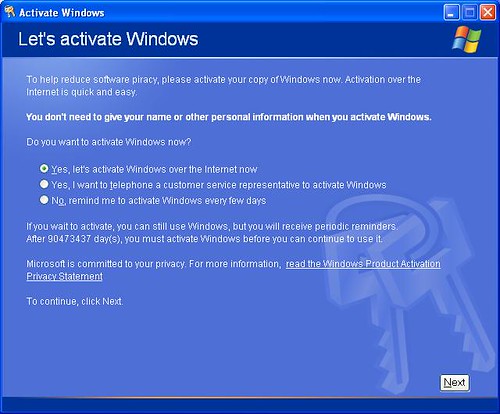
See, the first time you activated XP it created a file called "wpa.dbl" that lives in the WINDOWS\system32 folder. By creating a backup of this file on disk, you can simply put it back into the folder after reinstalling XP and avoid the whole re-activation hassle. Here's how...
- Go to My Computer then select your hard drive (usually drive C). Go to the WINDOWS\system32 folder and scroll way down until you find the wpa.dbl file.
- Right-click and choose "Send To" then either floppy disk (make sure you have a disk in), flash disk or CD-R/RW.
Now, when you reinstall Windows XP you'll come to the activation screen, decline to activate and let the install finish.
Restart your computer in Safe Mode (keep hitting F8 at start-up then when the Advanced Boot Options menu appears arrow down to Safe Mode).
Find your way back to the WINDOWS\system32 folder. It's a good idea to rename the wpa.dbl file you're replacing just in case you run into problems, so call it something like "wpa.nothing".
Get the backup disk and copy the old wpa.dbl file back to the WINDOWS\system32 folder and reboot.
There you go, your XP is up and running again.
Make Internet Explorer 7 Faster
Internet Explorer has been in a features arms race with Firefox for a while. More and more people are switching to Firefox because of its speed and stability. A big reason people still use Internet Explorer is it is the first browser that a new user will see so they become familiar with it.. If Internet Explorer did not ship with Windows it would not have the amount of users it does.

If that new user wants to use Internet Explorer but wants to give their browsing a speed boost. Here are a few tips.
If you Don't Need a Proxy Don't Use One.
A proxy server is used if you have a slow connection. If you have a high speed connection you usually don't need it. Here is how you remove it. Go to tools and select Internet Options. In the Internet Options click on the Connections tab and press the LAN settings. Just remove all of the check marks, click on OK.
Get Rid of 3rd Party Toolbars
Some software companies have learned that there is money to be made by installing their software branded toolbar. The problem with these toolbars is when installed they take up bandwidth and computer resources while you browse the internet. To remove the toolbars you don't need, just identify the toolbar and remove it for add/remove programs. If it is not listed in add/remove programs it may be spyware. You will then need to scan your computer with your favorite spyware/malware software.
Increase the Amount of Connections Internet Explorer uses.
By default Internet Explorer only uses 10 simultaneous connections to download content from a webpage. Here is how you can increase the amount of connections. Open notepad and paste the code below in it.
Save the file by clicking save as, change Save as type to All Files, name the file IEfaster.reg.
Now, merge that registry setting to registry by double clicking file IEfaster.reg and Click Yes on the dialog that appear. Restart your computer and done.
So there you have it. With these few changes you can really change the performance of Internet Explorer. If you want a completely better experience give Firefox a try. You won't be disappointed.

If that new user wants to use Internet Explorer but wants to give their browsing a speed boost. Here are a few tips.
If you Don't Need a Proxy Don't Use One.
A proxy server is used if you have a slow connection. If you have a high speed connection you usually don't need it. Here is how you remove it. Go to tools and select Internet Options. In the Internet Options click on the Connections tab and press the LAN settings. Just remove all of the check marks, click on OK.
Get Rid of 3rd Party Toolbars
Some software companies have learned that there is money to be made by installing their software branded toolbar. The problem with these toolbars is when installed they take up bandwidth and computer resources while you browse the internet. To remove the toolbars you don't need, just identify the toolbar and remove it for add/remove programs. If it is not listed in add/remove programs it may be spyware. You will then need to scan your computer with your favorite spyware/malware software.
Increase the Amount of Connections Internet Explorer uses.
By default Internet Explorer only uses 10 simultaneous connections to download content from a webpage. Here is how you can increase the amount of connections. Open notepad and paste the code below in it.
Windows Registry Editor Version 5.00
[HKEY_CURRENT_USERSoftwareMicrosoftWindowsCurrentVersionInternet Settings]
"MaxConnectionsPerServer"=dword:00000020
"MaxConnectionsPer1_0Server"=dword:0000020
Save the file by clicking save as, change Save as type to All Files, name the file IEfaster.reg.
Now, merge that registry setting to registry by double clicking file IEfaster.reg and Click Yes on the dialog that appear. Restart your computer and done.
So there you have it. With these few changes you can really change the performance of Internet Explorer. If you want a completely better experience give Firefox a try. You won't be disappointed.
Boost Your XP Performance with XP Smoker Pro 5.4
XP Smoker Pro - Is the newer, more powerful version of the Award winning tweaking utility designed specifically for Windows XP a.k.a WinXP. XP Smoker Pro allows you to change a multitude of settings in the registry. These settings can improve the performance of your computer drastically.

XP Smoker Pro includes a State-Of-The-Art internet optimizer that runs a series of tests to optimize your internet connection for blazing fast surfing no matter what connection speed you have whether it be broadband or dialup. XP Smoker Pro Includes 94 extra security settings to safeguard your pc from curious children. XP Smoker Pro is compatible with Windows XP Service Pack 3 (SP3).
XP Smoker Pro now includes "DriveFreeze" a new feature to lock down your removable storage devices so nobody can use them without your permission. You can lock down USB drives, CD-ROM/DVD drives, and floppy drives.
You can try to use this software by downloading at Here.

XP Smoker Pro includes a State-Of-The-Art internet optimizer that runs a series of tests to optimize your internet connection for blazing fast surfing no matter what connection speed you have whether it be broadband or dialup. XP Smoker Pro Includes 94 extra security settings to safeguard your pc from curious children. XP Smoker Pro is compatible with Windows XP Service Pack 3 (SP3).
XP Smoker Pro now includes "DriveFreeze" a new feature to lock down your removable storage devices so nobody can use them without your permission. You can lock down USB drives, CD-ROM/DVD drives, and floppy drives.
You can try to use this software by downloading at Here.


How To Block a Website
There are many reason why you need to know how to block a website. Some of the most common reasons are you have been targeted by spammers who use adware and popups to attack your PC. Other reasons may be to prevent your children from having access to certain site content such as porn and gambling.
Depending on the level of security you wish, learning how to block a website may require a adjustments of your web browser, the use of internet filtering software or editing of your host file. At any rate you can try all methods to see which works best for you.
Block a Website using Internet Explorer:
Internet Explorer version 5 and later offer the ability for heighten security and privacy. You can block a site by following the directions below:

Other way to block a website using Internet Explorer:
Click Tools ->Internet Options->Security->Restricted sites->Sites->Type in the site address and Click ADD then click OK.

Block A Website in All Web Browsers:
This action will require you to edit your Host file. Your host file is a computer file used to store information on where to find a node on a computer network.

Here are the steps in Windows XP:
Depending on the level of security you wish, learning how to block a website may require a adjustments of your web browser, the use of internet filtering software or editing of your host file. At any rate you can try all methods to see which works best for you.
Block a Website using Internet Explorer:
Internet Explorer version 5 and later offer the ability for heighten security and privacy. You can block a site by following the directions below:
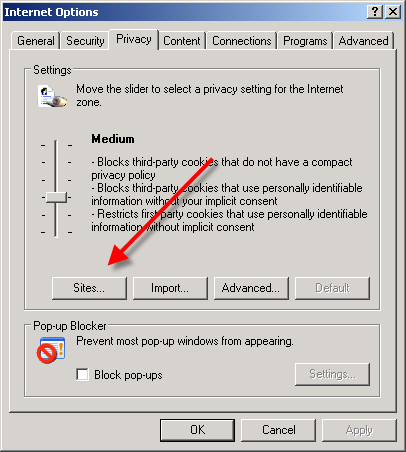
- Load your Internet explorer
- Click Tools
- Click Internet Options
- Click the Privacy tab
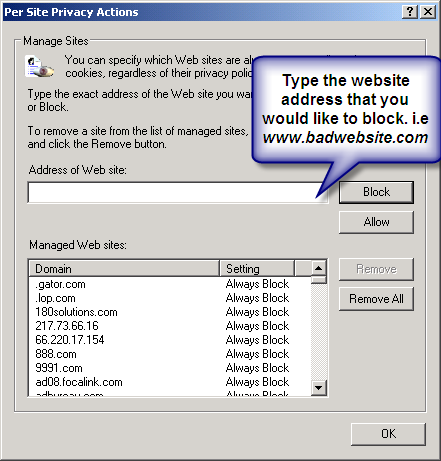
- Under the Privacy window, Click Sites
- Type in the site address that you want to Block and Click OK.
Other way to block a website using Internet Explorer:
Click Tools ->Internet Options->Security->Restricted sites->Sites->Type in the site address and Click ADD then click OK.
Block A Website in All Web Browsers:
This action will require you to edit your Host file. Your host file is a computer file used to store information on where to find a node on a computer network.
Here are the steps in Windows XP:
- Click Start->All Programs->Accessories->Command Prompt2.
- Click Command Prompt This will open a DOS command window.
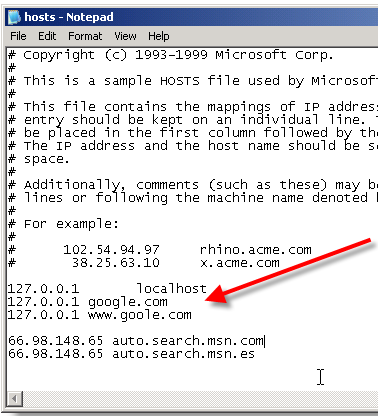
- Type: notepad C:/Windows/System32/drivers/etc/hosts
- Locate the line 127.0.0.1 localhost
- To block the website google.com for example, just add this text under 127.0.0.1 localhost:
127.0.0.1 google.com127.0.0.1 www.google.com
- You can add as many sites any site, However you will need to prefix it with "127.0.0.1".
- Save the file
How To Enable Task Manager
Some Malware and Trojan often disable access to Windows Task Manager. Fortunately, a few quick Registry edits are usually all that are needed to regain control.

Here's how to do it:

Here's how to do it:
- Click Start
- Click Run
- Type REGEDIT
- Click OK and The Registry Editor will now open
- Browse to the following key: HKEY_CURRENT_USER\Software\Microsoft\Windows\CurrentVersion\Policies\system
- In the right pane, look for the value: DisableTaskMgr
- Right click DisableTaskMgr and select Delete. (When prompted with "Are you sure you want to delete this value", select Yes.
- Now browse to the following key: HKEY_LOCAL_MACHINE\SOFTWARE\Microsoft\Windows\CurrentVersion\policies\system
- In the right pane, look for the value: DisableTaskMgr
- Right click DisableTaskMgr and select Delete. (When prompted with "Are you sure you want to delete this value", select Yes.
- Close the Registry by choosing File | Exit
- Restart your computer
nutes
 DriverMax is a new software which allows you to easily reinstall all your Windows drivers. No more searching for rare drivers on discs or on the web or inserting one installation CD after the other. Simply export all your current drivers (or just the ones that work OK) to a folder or a compressed file. After reinstalling Windows you will have everything in one place!
Most of the situations when Windows is running slower are caused by faulty driver installations. Windows stores all versions of older drivers just in case you want to go back; sometimes it messes up older versions with more recent ones. The Export Wizard will only export the drivers you select by copying the needed files to a folder or a compressed ZIP file.
After reinstalling Windows all drivers will be back in place in less than 5 minutes - sparing you of searching, inserting disc after disk and losing precious time. The Import Drivers wizard allows you to install all the drivers that you exported earlier. The entire operation might take up to 5-10 minutes.
Just one single computer restart will be required after all drivers are reinstalled!
DriverMax is able to display a complete report of all drivers (versions, release dates) installed on your system. This feature can also be very useful when you want to analyze the differences between the drivers installed on different machines.
Download DriverMax at Here or Here.
Transform XP Interface To Vista
This program will transform your Windows user interface to ultimate Windows Vista alike looks that everyone will never notice it’s the same old Windows XP (or 2003).

Vista Transformation Pack gives to your Windows XP system the fresh and cool look of Microsoft's new operating system: Windows Vista. The pack changes most of the system icons, skins and toolbars and also adds new enhancements to your desktop such as a dock bar or a different system tray clock.
Changes in Version 8.0.1
Changes in Version 8.0

Vista Transformation Pack gives to your Windows XP system the fresh and cool look of Microsoft's new operating system: Windows Vista. The pack changes most of the system icons, skins and toolbars and also adds new enhancements to your desktop such as a dock bar or a different system tray clock.
Changes in Version 8.0.1
Fixed pre-configuration specifications to improve performance (Removed unstable applications from list)
Fixed TrueTransparency's stability (some settings in skin causing input hook problems)
Fixed Visualtooltip configuration when user accidently deletes the configuration files in there
Removed backup files' status and put CPU model instead (obsolete checking)
Updated system files' status report to "Out of sync" and repairing system files information
Updated user account configuration system for more subtle performance
Changes in Version 8.0
Added CPU Speed information in Welcome Center
Added saving setup information file to save setup configuration for later uses with unattended transformation support
Added installation background
Added "System optimized" in Setup Configuration to configure the user account corresponding to machine's spec
Added TrueTransparency 0.8.5 (Glass border with ported AeroStyle skin)
Added WinFlip 0.42 (Vista 3DFlip)
Fixed KB925902 hotfix issues with file processing animation
Fixed Media Center program execution error
Fixed rebuilding icon cache bug on non-current users during the processes
Fixed Styler's installation checking bug (always set toolbar to styler mode when possible)
Fixed failing to apply Vista screensaver
Fixed program name in Add/Remove Programs
Fixed subscribing Windows X's shrine to be default homepage bug in Welcome Center
Fixed visualtooltip's advanced configuration bug
Fixed WindowBlinds 6 skin installation compatibility
Moved hotfix warning to user guide file to prevent confusion
Re-arranged welcome dialog for richer information
Replaced Extras in Welcome Center with Community link to forum
Removed configuring user account's status report
Removed obsolete dialogs (WindowBlinds warning, Before transformation, Donation, FAQ and Q&A)
Removed Vista Live Messenger 8.1 skin
Updated Setup Configuration in Welcome Center to cover on everything
Updated setup transformation to pre-configure current user account before finishing the transformation
Updated theming engine configuration
Updated Vista Sidebar to version 2.3 Lite
Updated Vista Sidebar user account configuration in Welcome Center
Updated ViStart to build 2661
Updated ViOrb to version 2.0
Updated VisualTooltip to version 2.2
Updated Welcome Center to pre-configure user account with system optimized option on the first run in that user account
Windows XP SP3 Build 5508 RC2 (25 March Release)
 Microsot has just released SP3 Build 5508 RC2 on March 25, 2008. Windows XP Service Pack 3 (SP3) includes all previously released updates for the operating system. This update also includes a small number of new functionalities, which do not significantly change customers’ experience with the operating system.
Microsoft Windows XP Service Pack 3 (SP3) provides new proactive security technologies for Windows XP to better defend against viruses, worms, and hackers along with increased manageability and an improved experience for users.
Microsoft Windows XP Service Pack 3 fixes a range of bugs in Windows XP. It doesn’t matter what XP updates you have previously applied to your system, SP3 will update any unpatched, partially patched or completely updated system (it includes all previously released patches and updates). XP SP3 fixes the security holes so you won’t get attacked.
Microsoft periodically combines updates, fixes, and other improvements into a single package - Service Pack. Microsoft develops updates, fixes, and other improvements that address issues reported by the company’s customers and partners. To make it easier for customers to get these updates and enhancements, Microsoft periodically combines them into a single package, and makes that package available for all Windows customers.
These packages are called service packs”, Microsoft revealed in the introduction of the Overview of Windows XP Service Pack 3. With the Release Candidates of Vista SP1 and Windows Server 2008 heading to increased testing pools the past week, and with Microsoft cooking the first public build of the first refresh for its latest Windows client, the official overview for XP SP3 is the only crumb from the service pack fiesta over at the Redmond company. The Release Candidate of XP SP3 in a pre-final stage has already shipped to MSDN and TechNet subscribers.
As of March 25, 2008, Windows XP users are able to grab their very own XP SP3 RC2 Refresh Build 5508. The latest development milestone of the third and final service pack for XP is available for download exclusively via Windows Update, the update infrastructure Microsoft has built for its operating systems. Unlike the previous XP SP3 Release Candidate 2, Build 5508 does not come as a standalone package.
"The purpose of RC2 Refresh is to validate improvements to the Windows Update experience with Service Pack 3. Therefore, this beta release will be available only on Windows Update, in English, German and Japanese. Beyond fixes for common Windows Update issues and the inclusion of support for HD Audio, there are no substantial differences between this beta release (build 5508) and XP SP3 RC2 (build 3311)", revealed the Release Manager for Windows Serviceability.
Build 5508 is offered as an update to Windows XP SP2. This release does not support build to build upgrades, and this is why Microsoft is advising all XP SP3 testers to uninstall the RC2 Build 3311 version before applying Build 5508. At the same time Microsoft warned end users that despite the public availability of XP SP3 RC2 Refresh, the release is still a beta build and should only be deployed in testing environments.
XP SP3 RC2 Refresh includes all previously released updates for the operating system, similar to earlier service packs. It also includes previously released updates to the latest versions of some system components, as well as functionality that make it easier for enterprises to co-manage both Windows XP SP3 and Windows Vista PCs within same corporate environment", added the Release Manager for Windows Serviceability.
What Microsoft is essentially offering with the download for Build 5508 is a script designed to tweak the registry of Windows XP SP2 systems in order to help them identify XP SP3 RC2 Refresh over the Windows Update servers. Without the registry tweak XP SP2 machines will not detect RC2 Refresh.
"The application to enable download of XP SP3 RC2 Refresh is the same application as was used to distribute XP SP3 RC2. This is an application that can be found at the Microsoft Download Center. Running this application on a machine with Windows XP Service Pack 2 will enable Windows Update to offer XP SP3 RC2 Refresh to that machine", concluded the Release Manager for Windows Serviceability.
You can download this new release of SP3 directly at Here.
Make Your XP Logon Screen Look Like Vista
Have you ever wondered how to change the default Windows XP logon screen? Now I got the idea to figure out how to make it look like Windows Vista instead, so I'm writing that up for you.
First, you'll have to download and install the free LogonStudio application and make sure that it is set as the default logon handler, which is easy since it will prompt you when you first open it. (Note that this is the same application you can use to customize Windows Vista's logon screen.)
The three default welcome screens aren't very impressive, but there's a ton of great ones on the wincustomize site, including the Vista one you see here.

Next, download and open the Windows Vista Ultimate Logon screen for XP, and select it in LogonStudio as shown above. Once you hit the Apply button, you'll see your Vista-style logon screen for XP:

Note that this will not work if you are logging into a domain, or if you use the classic style logon with Ctrl+Alt+Del.
First, you'll have to download and install the free LogonStudio application and make sure that it is set as the default logon handler, which is easy since it will prompt you when you first open it. (Note that this is the same application you can use to customize Windows Vista's logon screen.)
The three default welcome screens aren't very impressive, but there's a ton of great ones on the wincustomize site, including the Vista one you see here.

Next, download and open the Windows Vista Ultimate Logon screen for XP, and select it in LogonStudio as shown above. Once you hit the Apply button, you'll see your Vista-style logon screen for XP:

Note that this will not work if you are logging into a domain, or if you use the classic style logon with Ctrl+Alt+Del.
Unlock Your Files or Folder with Free Unlocker!
Even get rid of error message like Error deleting file or folder, cannot delete folder: it's being used by another person or program? Now, you can use this freeware to solve that problem: Unlocker!

Unlocker is a very useful Windows Explorer extension allowing users with a simple right-click on a file or folder to easily get rid of error message such as error deleting file or folder, cannot delete folder: it's being used by another person or program.
Helps delete locked files with error messages like:
Cannot delete file: Access is denied
There has been a sharing violation.
The source or destination file may be in use.
The file is in use by another program or user.
Make sure the disk is not full or write-protected and that the file is not currently in use.
Unlocker 1.8.5 is 100% FREE, which means it is a freeware product (both for personal and commercial use) that does not contain any form of malware, including but not limited to: spyware, viruses, trojans and backdoors.
This software product was tested thoroughly and was found absolutely clean, therefore it can be installed with no concern by any computer user.
You can download Unlocker, now on version 1.85 at Here, and reach more info on its site.

Unlocker is a very useful Windows Explorer extension allowing users with a simple right-click on a file or folder to easily get rid of error message such as error deleting file or folder, cannot delete folder: it's being used by another person or program.
Helps delete locked files with error messages like:
Cannot delete file: Access is denied
There has been a sharing violation.
The source or destination file may be in use.
The file is in use by another program or user.
Make sure the disk is not full or write-protected and that the file is not currently in use.
Unlocker 1.8.5 is 100% FREE, which means it is a freeware product (both for personal and commercial use) that does not contain any form of malware, including but not limited to: spyware, viruses, trojans and backdoors.
This software product was tested thoroughly and was found absolutely clean, therefore it can be installed with no concern by any computer user.
You can download Unlocker, now on version 1.85 at Here, and reach more info on its site.
How To Access Locked Old My Documents in XP
 After re-install or upgrade your XP, you can't access your old My Documents folder? Don't panic, easy..
One have to do is take ownership of that folder where you have been denied access with replace the security permissions to have access.
First, you must be logged on to the computer with an account that has administrative credentials. If you are running Microsoft Windows XP Home Edition, you must start the computer in safe mode, and then log on with an account that has Administrative rights to have access to the Security tab.
If you are using Windows XP Professional, you must disable Simple File Sharing. By default, Windows XP Professional uses Simple File sharing when it is not joined to a domain. For information about how to disable Simple File Sharing, view this Microsoft Knowledge Base's article about it.
Now, follow this steps to take ownership of a folder:
- Right-click the folder that you want to take ownership of, and then click Properties.
- Click the Security tab, and then click OK on the Security message (if one appears).
- Click Advanced, and then click the Owner tab.
- In the Name list, click your user name, or click Administrator if you are logged in as Administrator, or click the Administrators group. If you want to take ownership of the contents of that folder, select the Replace owner on sub containers and objects check box.
- Click OK, and then click Yes when you receive the following message:
- You do not have permission to read the contents of directory folder name. Do you want to replace the directory permissions with permissions granting you Full Control?
- All permissions will be replaced if you press Yes.
- Note folder name is the name of the folder that you want to take ownership of.
- Click OK, and then reapply the permissions and security settings that you want for the folder and its contents.
Hoopla! Now, you're grant access to your old My Documents folder!
Windows XP Service Pack 3 (SP3)
 Microsoft Windows XP Service Pack 3 (SP3) provides new proactive security technologies for Windows XP to better defend against viruses, worms, and hackers along with increased manageability and an improved experience for users.
Microsoft Windows XP Service Pack 3 fixes a range of bugs in Windows XP. It doesn't matter what XP updates you have previously applied to your system, SP3 will update any unpatched, partially patched or completely updated system (it includes all previously released patches and updates). XP SP3 fixes the security holes so you won't get attacked.
Microsoft periodically combines updates, fixes, and other improvements into a single package - Service Pack. Microsoft develops updates, fixes, and other improvements that address issues reported by the company’s customers and partners. To make it easier for customers to get these updates and enhancements, Microsoft periodically combines them into a single package, and makes that package available for all Windows customers.

"These packages are called service packs", Microsoft revealed in the introduction of the Overview of Windows XP Service Pack 3. With the Release Candidates of Vista SP1 and Windows Server 2008 heading to increased testing pools the past week, and with Microsoft cooking the first public build of the first refresh for its latest Windows client, the official overview for XP SP3 is the only crumb from the service pack fiesta over at the Redmond company. The Release Candidate of XP SP3 in a pre-final stage has already shipped to MSDN and TechNet subscribers.
Btw, you can download Windows XP SP3 at Here.
Windows XP on One GB USB Flash Disk
Windows XP Portable

Boot Options:
Softwares that include:
Download ..
Download this nice USB OS at Here: Part 1 2 3 4 5 6 7

Boot Options:
- F1 Low ( 64Mb Ram, Fat 32, 640x480 )
- F2 Medium ( 96Mb Ram, Fat32, Basic, 800x600 )
- F3 Standard ( 128Mb Ram. NTFS, PnP, Network, 800x600 )
- F4 P3/P4 PC ( 256Mb Ram, NTFS, Network, 1024x768 )
- F5 P3/P4 PC ( 256Mb Ram, NTFS, Network, WiFi, 1024x768 )
- F6 P4 PC ( 512Mb Ram, NTFS, Network, WiFi, 1024x768 )
- F7 P4 PC ( 512Mb Ram, NTFS-C, Full SPEC, 1024x768 )
- F8 SUPER PC
- F9 Customize Your Setting
Softwares that include:
- OFFICE: Ability Office - Database > Draw > Paint >> Presentation > Spreadsheet > Write
- ANTI-SPYWARE: Ad-aware SE / Hijack This / SpybotSnD / Super Anti spyware
- ANTIVIRUS: Antivir Personal / ClamWinAV / Kapersky AV6 / NOD32
- CD-BURNERS: DeepBurner 1.8 / Nero Burning ROM
- CPU UTILITIES: CPU-z / Crystal CPUID / Speedfan
- HARDDISK UTILITIES: Autobackup 2.0 / Cobian HDD backup / DriveImage XML / WinImage 8.0 / WIPE HDD / Paragon Partition 7
- INTERNET UTILITIES: Angry IP Scanner / FileZilla / Flashget Downloader / Gaim Messenger / Mozilla Thunderbird / Opera Browser /U-torrent
- PASSWORD UTILITIES: LCP 5 / Password Pro / Renew Password XP / RockXP 3.0 / SAMInside
- PDF UTILITIES: PDF Editor / PDF Reader / PDF Utility
- PHOTOS N IMAGE EDITOR: GIMP / Icon Sushi / Xn-View
- RECOVERY UTILITIES: CD-DVD Recovery / Damaged File Copier / Dead Disk Doctor / Disk Investigator / Get Databack for FAT/NTFS / HandyRecovery 1.0 / PCI File Recovery 4.0
- ZIP UTILITIES: 7-Zip / WinRaR 3.6 / IExpress 2.0 / KGB Archiver 1.2
Download ..
Download this nice USB OS at Here: Part 1 2 3 4 5 6 7
Vista Transformation Pack v7 NEW
 This release has overall improvements for features compared to previous versions and has a lot of user interface refinements for ease of use with end-user.
You will find this program is amazingly easier comparing to all other shell packs. Let's see the changelog of this release.
Changes in Version 7.0:
-Added default system font option for recovery
-Added Docking support for preview and taskbar replacement
-Added DPI auto-detection in Machine Configuration
-Added hiding menubar option for Vista (Styler) toolbar
-Added information about KB925902 hotfix issues and solution on startup
-Added memory requirements checking for 3rd-party applications
-Added resetting DPI options and some extra information in Machine Configuration
-Added screen resolution auto-detection
-Added setting cleartype font automatically after the transformation
-Added Vista transformation "Express mode" (Make an appropriate setup configuration in single page!)
-Added ViStart (Vista Start Menu port for Windows XP/2003 with glass UI and search function)
-Added uninstalling existing components before updating
-Added WindowBlinds detection warning message (for user who is mistaken about glass border skin)
-Added Windows Server 2003 Service Pack 2 uxtheme patching support
-Fixed backing up system files bug on repair mode
-Fixed checking for Styler incompatibility with x64 edition OS
-Fixed fileversion checking bug that cause backup system files being overwritten by modified system files when update
-Fixed operating system checking bug (that allow user to install in Windows 2000 and below)
-Fixed Start Orb positioning bug
-Fixed Styler to execute Styler.exe only when user wants to hide menu bar to save up memory and some weird issues
-Fixed Styler to run in toolbar mode (prevent error and message popup)
-Fixed Vista (Styler) toolbar option with correction of menubar
-Fixed uninstalling bug with system drive icon
-Fixed uninstalling routines
-Fixed uxtheme.dll patching detection bugs on machine without any service pack
-Fixed Windows Live Messenger skin uninstallation bug
-Moved extra dialogs in the main dialogs process so user can make all decisions before transforming
-Removed customized open/save dialog due to bugs in some applications
-Replaced closeapp with pskill (some programs reported closeapp as virus though it isn't)
-Replaced Blaero's Start Orb with ViOrb (Auto positioning and snap over the start button upon taskbar shifting)
-Updated battery tray icons
-Updated Getting Started and Help and Support FAQ
-Updated LClock x86 to version 1.62b
-Updated Maintenance Center to be Welcome Center
-Updated minor UI graphic resources in themes
-Updated Segoe UI font
-Updated Shutdown/Logoff dialogs
-Updated Start Orb to full circle version
-Updated Thoosje's Vista sidebar to version 2.1
-Updated transformation to use backup system file if it has the same fileversion during update
-Updated updating function to uninstall previous components before updating
-Updated Vista logon screen (Thanks to SoFtEcH for updating my logon)
- Added status message (Welcome, Shutdown, etc.)
- Fixed user account disapperance bug on lower resolution
- Fixed user account moving around when focused
- Moved shutdown button to right part
- Updated password panel resources
- Updated userpicture's frame border
Download This at Here.
100 Keyboard Shortcuts for Windows

100 Keyboard Shortcuts for Windows
CTRL+C (Copy)
CTRL+X (Cut)
CTRL+V (Paste)
CTRL+Z (Undo)
DELETE (Delete)
SHIFT+DELETE (Delete the selected item permanently without placing the item in the Recycle Bin)
CTRL while dragging an item (Copy the selected item)
CTRL+SHIFT while dragging an item (Create a shortcut to the selected item)
F2 key (Rename the selected item)
CTRL+RIGHT ARROW (Move the insertion point to the beginning of the next word)
CTRL+LEFT ARROW (Move the insertion point to the beginning of the previous word)
CTRL+DOWN ARROW (Move the insertion point to the beginning of the next paragraph)
CTRL+UP ARROW (Move the insertion point to the beginning of the previous paragraph)
CTRL+SHIFT with any of the arrow keys (Highlight a block of text)
SHIFT with any of the arrow keys (Select more than one item in a window or on the desktop, or select text in a document)
CTRL+A (Select all)
F3 key (Search for a file or a folder)
ALT+ENTER (View the properties for the selected item)
ALT+F4 (Close the active item, or quit the active program)
ALT+ENTER (Display the properties of the selected object)
ALT+SPACEBAR (Open the shortcut menu for the active window)
CTRL+F4 (Close the active document in programs that enable you to have multiple documents open simultaneously)
ALT+TAB (Switch between the open items)
ALT+ESC (Cycle through items in the order that they had been opened)
F6 key (Cycle through the screen elements in a window or on the desktop)
F4 key (Display the Address bar list in My Computer or Windows Explorer)
SHIFT+F10 (Display the shortcut menu for the selected item)
ALT+SPACEBAR (Display the System menu for the active window)
CTRL+ESC (Display the Start menu)
ALT+Underlined letter in a menu name (Display the corresponding menu)
Underlined letter in a command name on an open menu (Perform the corresponding command)
F10 key (Activate the menu bar in the active program)
RIGHT ARROW (Open the next menu to the right, or open a submenu)
LEFT ARROW (Open the next menu to the left, or close a submenu)
F5 key (Update the active window)
BACKSPACE (View the folder one level up in My Computer or Windows Explorer)
ESC (Cancel the current task)
SHIFT when you insert a CD-ROM into the CD-ROM drive (Prevent the CD-ROM from automatically playing)
Dialog Box Keyboard Shortcuts
CTRL+TAB (Move forward through the tabs)
CTRL+SHIFT+TAB (Move backward through the tabs)
TAB (Move forward through the options)
SHIFT+TAB (Move backward through the options)
ALT+Underlined letter (Perform the corresponding command or select the corresponding option)
ENTER (Perform the command for the active option or button)
SPACEBAR (Select or clear the check box if the active option is a check box)
Arrow keys (Select a button if the active option is a group of option buttons)
F1 key (Display Help)
F4 key (Display the items in the active list)
BACKSPACE (Open a folder one level up if a folder is selected in the Save As or Open dialog box)
Microsoft Natural Keyboard Shortcuts
Windows Logo (Display or hide the Start menu)
Windows Logo+BREAK (Display the System Properties dialog box)
Windows Logo+D (Display the desktop)
Windows Logo+M (Minimize all of the windows)
Windows Logo+SHIFT+M (Restore the minimized windows)
Windows Logo+E (Open My Computer)
Windows Logo+F (Search for a file or a folder)
CTRL+Windows Logo+F (Search for computers)
Windows Logo+F1 (Display Windows Help)
Windows Logo+ L (Lock the keyboard)
Windows Logo+R (Open the Run dialog box)
Windows Logo+U (Open Utility Manager)
Accessibility Keyboard Shortcuts
Right SHIFT for eight seconds (Switch FilterKeys either on or off)
Left ALT+left SHIFT+PRINT SCREEN (Switch High Contrast either on or off)
Left ALT+left SHIFT+NUM LOCK (Switch the MouseKeys either on or off)
SHIFT five times (Switch the StickyKeys either on or off)
NUM LOCK for five seconds (Switch the ToggleKeys either on or off)
Windows Logo +U (Open Utility Manager)
Windows Explorer Keyboard Shortcuts
END (Display the bottom of the active window)
HOME (Display the top of the active window)
NUM LOCK+Asterisk sign (*) (Display all of the subfolders that are under the selected folder)
NUM LOCK+Plus sign (+) (Display the contents of the selected folder)
NUM LOCK+Minus sign (-) (Collapse the selected folder)
LEFT ARROW (Collapse the current selection if it is expanded, or select the parent folder)
RIGHT ARROW (Display the current selection if it is collapsed, or select the first subfolder)
Shortcut Keys for Character Map
After you double-click a character on the grid of characters, you can move through the grid by using the keyboard shortcuts:
RIGHT ARROW (Move to the right or to the beginning of the next line)
LEFT ARROW (Move to the left or to the end of the previous line)
UP ARROW (Move up one row)
DOWN ARROW (Move down one row)
PAGE UP (Move up one screen at a time)
PAGE DOWN (Move down one screen at a time)
HOME (Move to the beginning of the line)
END (Move to the end of the line)
CTRL+HOME (Move to the first character)
CTRL+END (Move to the last character)
SPACEBAR (Switch between Enlarged and Normal mode when a character is selected)
Microsoft Management Console (MMC) Main Window Keyboard Shortcuts
CTRL+O (Open a saved console)
CTRL+N (Open a new console)
CTRL+S (Save the open console)
CTRL+M (Add or remove a console item)
CTRL+W (Open a new window)
F5 key (Update the content of all console windows)
ALT+SPACEBAR (Display the MMC window menu)
ALT+F4 (Close the console)
ALT+A (Display the Action menu)
ALT+V (Display the View menu)
ALT+F (Display the File menu)
ALT+O (Display the Favorites menu)
MMC Console Window Keyboard Shortcuts
CTRL+P (Print the current page or active pane)
ALT+Minus sign (-) (Display the window menu for the active console window)
SHIFT+F10 (Display the Action shortcut menu for the selected item)
F1 key (Open the Help topic, if any, for the selected item)
F5 key (Update the content of all console windows)
CTRL+F10 (Maximize the active console window)
CTRL+F5 (Restore the active console window)
ALT+ENTER (Display the Properties dialog box, if any, for the selected item)
F2 key (Rename the selected item)
CTRL+F4 (Close the active console window. When a console has only one console window, this shortcut closes the console)
Remote Desktop Connection Navigation
CTRL+ALT+END (Open the Microsoft Windows NT Security dialog box)
ALT+PAGE UP (Switch between programs from left to right)
ALT+PAGE DOWN (Switch between programs from right to left)
ALT+INSERT (Cycle through the programs in most recently used order)
ALT+HOME (Display the Start menu)
CTRL+ALT+BREAK (Switch the client computer between a window and a full screen)
ALT+DELETE (Display the Windows menu)
CTRL+ALT+Minus sign (-) (Place a snapshot of the active window in the client on the Terminal server clipboard and provide the same functionality as pressing PRINT SCREEN on a local computer.)
CTRL+ALT+Plus sign (+) (Place a snapshot of the entire client window area on the Terminal server clipboard and provide the same functionality as pressing ALT+PRINT SCREEN on a local computer.)
MicroSoft Internet Explorer Navigation
CTRL+B (Open the Organize Favorites dialog box)
CTRL+E (Open the Search bar)
CTRL+F (Start the Find utility)
CTRL+H (Open the History bar)
CTRL+I (Open the Favorites bar)
CTRL+L (Open the Open dialog box)
CTRL+N (Start another instance of the browser with the same Web address)
CTRL+O (Open the Open dialog box, the same as CTRL+L)
CTRL+P (Open the Print dialog box)
CTRL+R (Update the current Web page)
CTRL+W (Close the current window)

